New Features – Polygon Upload and expanded searches
Dandjoo’s search tools have been significantly enhanced to make finding biodiversity data faster, more flexible, and more precise. You can now define your area of interest by uploading polygon files, searching by street address or land title, or drawing directly on the map. Search has also been expanded with additional taxonomic ranks, vernacular (common) name searching, and smarter type-ahead suggestions. Finally, completed searches can be shared and saved using a unique link, making it easy to revisit or collaborate on the same results.
Search using polygon file
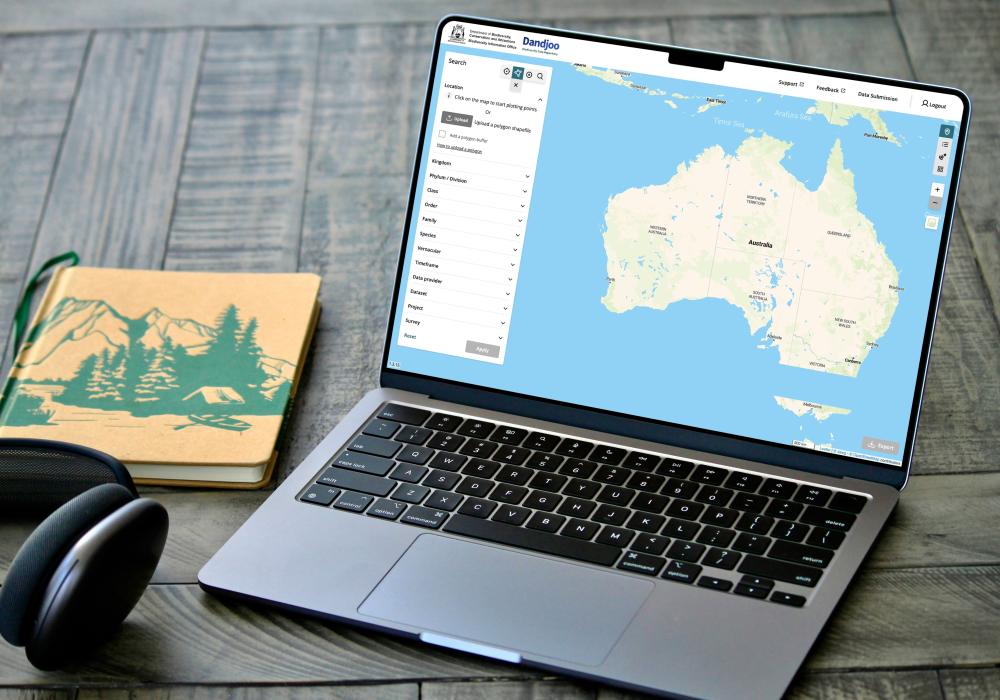
An area of interest can now be searched by uploading a shapefile file by either a single *.shp file or packaged zip file.
Refer to our polygon upload page for more information on file requirements.
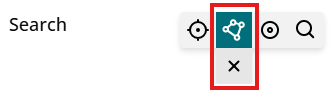
This new function is added to the existing ‘Draw a polygon’ function
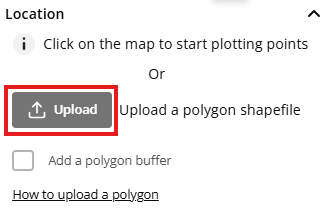
To start your search, click on the ‘Upload’ button which will open a file browser to allow you to search and select your shape file

Once the file has been selected, Dandjoo will perform a validity check. If the file does not contain the appropriate formats, it will produce an error message (see below). Please refer to the upload requirements for more information and contact us at bio@dbca.wa.gov.au if the error persists

If the upload file is valid then the icon imagery changes and the uploaded shapefile should appear in the Map view
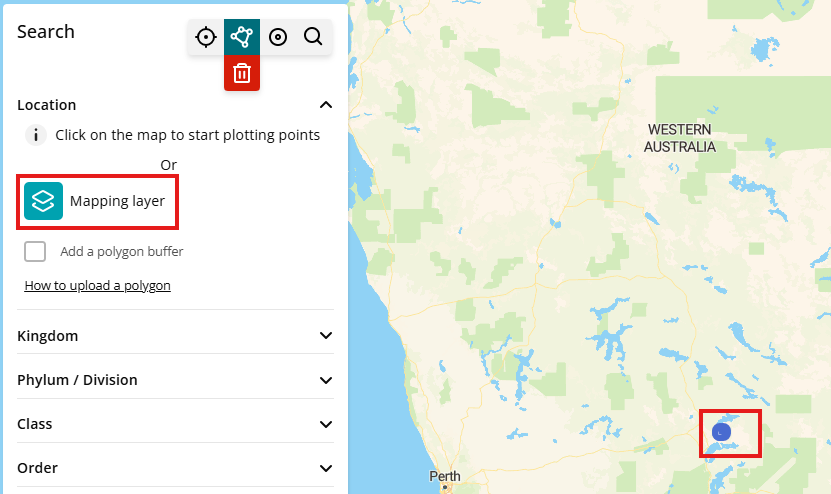
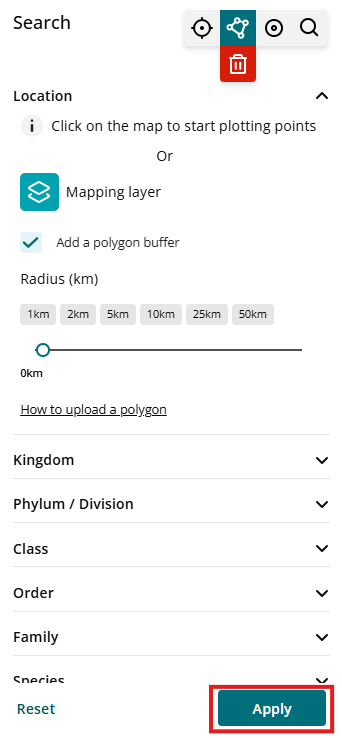
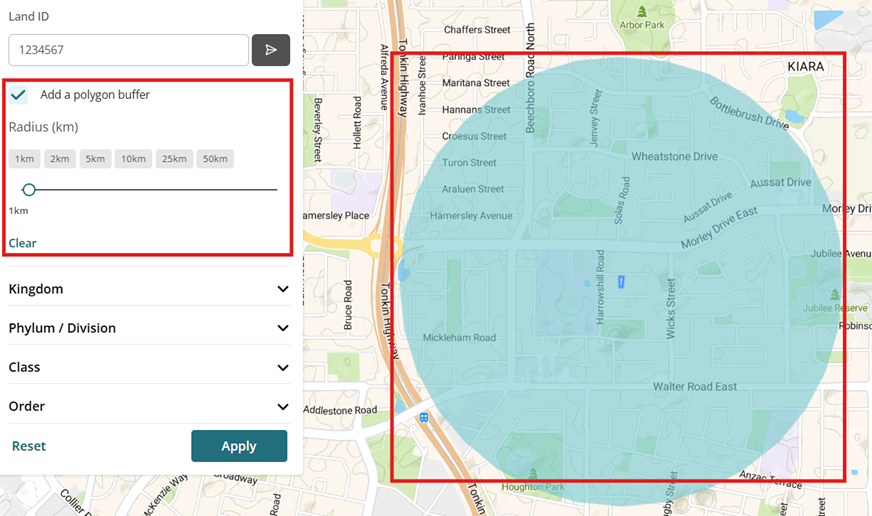
A buffer can be added by ticking the ‘Add a polygon buffer’ box and applied through presets or the slider tool.
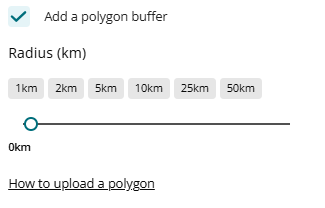
Pressing ‘Apply’ will then perform the polygon search.
Additional taxonomic rank search fields
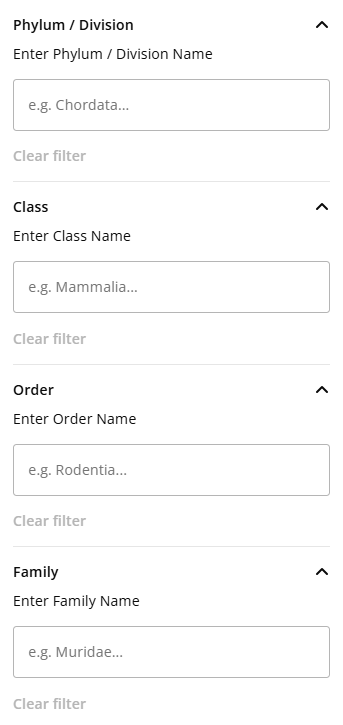
You can now search using Phylum / Division, Class, Order and Family search fields
Note that currently, lower rank search suggestions are not tied to the higher rank search entries that is, selecting ‘Chordata’ in Phylum does not limit dropdown results in the Class rank search to only classes within ‘Chordata’ and so on).
Faster, smarter search suggestions
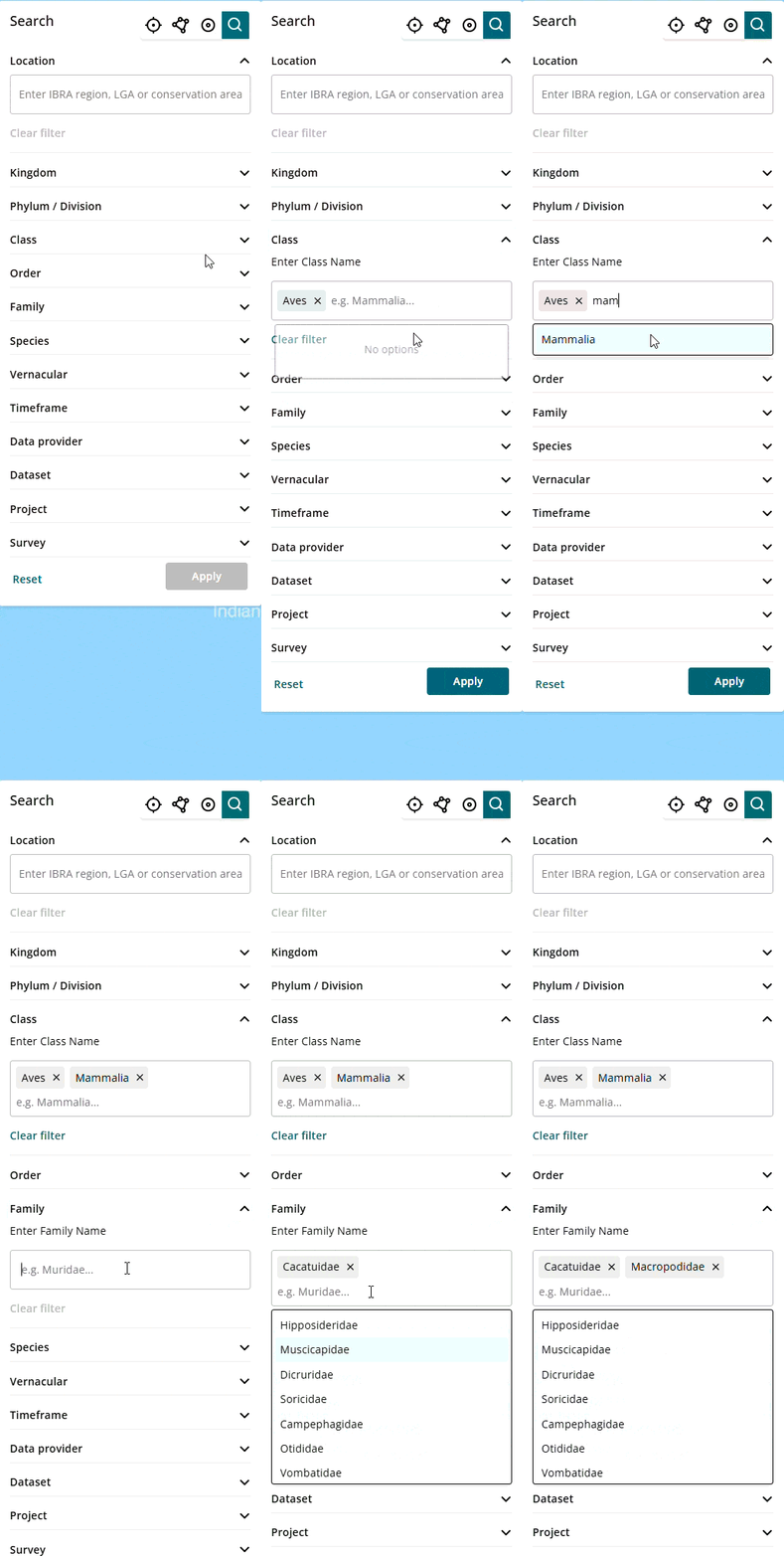
Type-ahead feature – implementation of real-time searching as the user is typing their search criteria, improving on the previous search code. As you type in the search box, suggestions now appear instantly, making it quicker and easier to find what your looking for.
Partial text searches – Searches now match based on any part of the text, for example, searching ‘gardie’ will drop-down the result ‘Coolgardie (Local Government Areas) and other results that contain the text ‘gardie’
Multiple criteria within a search field – Multiple criteria's can be selected in search fields, delineating by using either commas or clicking on the typed search results. Note that this is currently not available for Location text search
Search by vernacular (common) name
You can now search by the common name of a species in the ‘Vernacular’ search field.
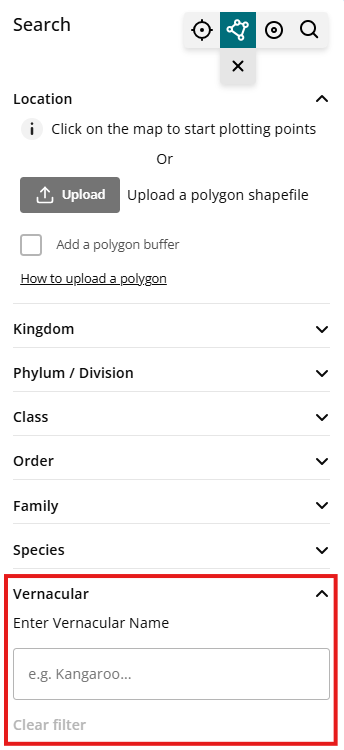
Note, vernacular/ common names are sourced from authoritative databases at the WA Herbarium and WA Museum and are not exhaustive to all the variations of identifiable name for a species.
Share and saving a search
Each search can now be shared via a uniquely generated search link. This unique generated link is saved in Dandjoo and can be referenced for future use.
To use the function, a search must first be completed by pressing ‘Apply’ and awaiting until search results are made available. Once the search results are produced, the ‘Share’ function on the bottom left of the screen can be clicked.

This will display a Share Search pop-up and will allow the shareable link to be generated. This will be indicated by the ‘Generate URL’ button being displayed is a darker shade of grey.
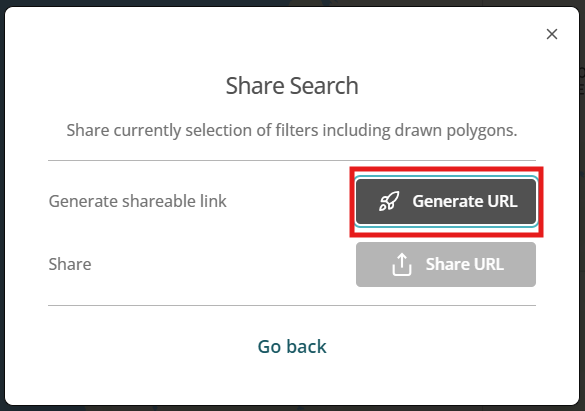
After clicking ‘Generate URL’, the unique shareable link is generated and can be shared by either:
- Using the ‘Share URL’ to use the in-built sharing tools or
- Using the ‘Copy link’ button to copy the link as text
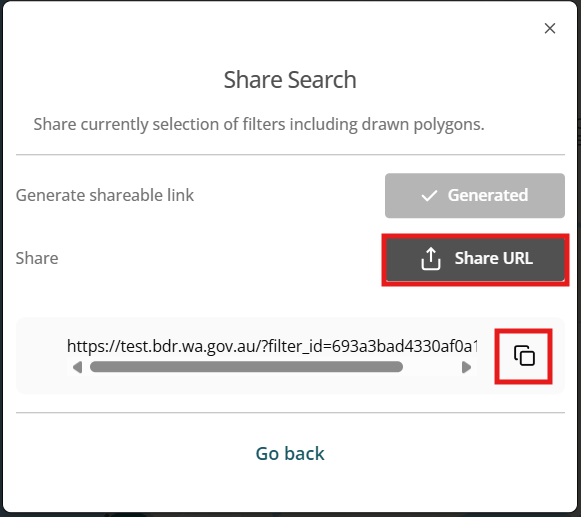
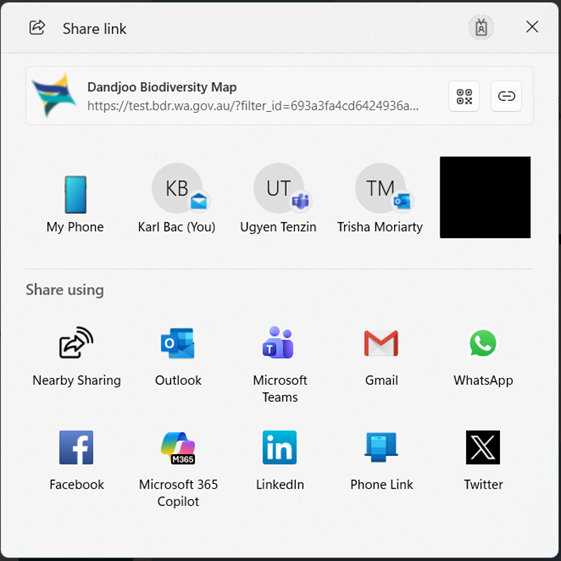
Using the ‘Share URL’ button, will display a number of preset platforms to share to and users you may have recently interacted with.
Land Title and Street address search
A search area can now also be set based on Street address or Land title attributes in the ‘Search by area of interest’ function.
Street address and land title information obtained from Landgate.
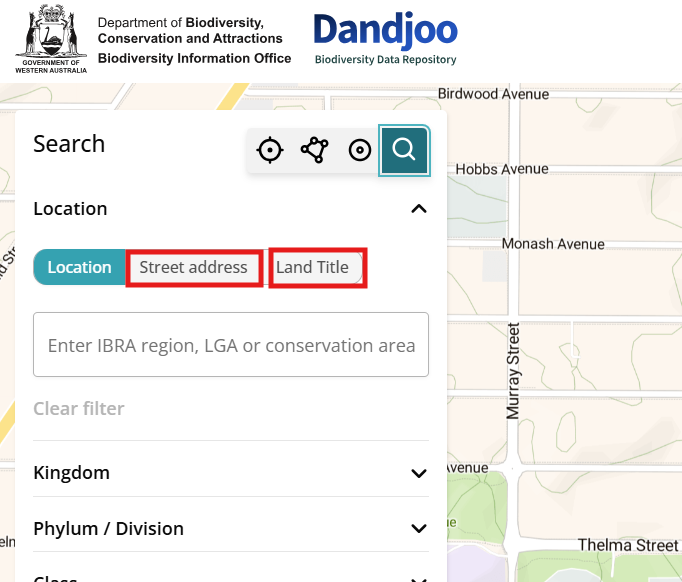
Street Address search
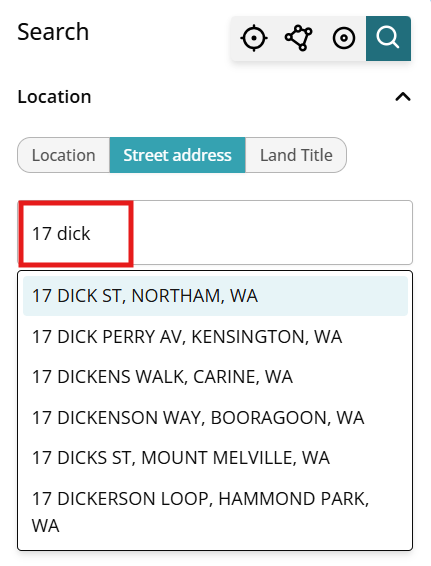
Selecting the ‘Street address’ option and entering the street address will display a drop down of street addresses for you to choose from. If the street address is not found in the drop down or the drop-down is blank, then the address is not currently listed in our data access to Landgate.
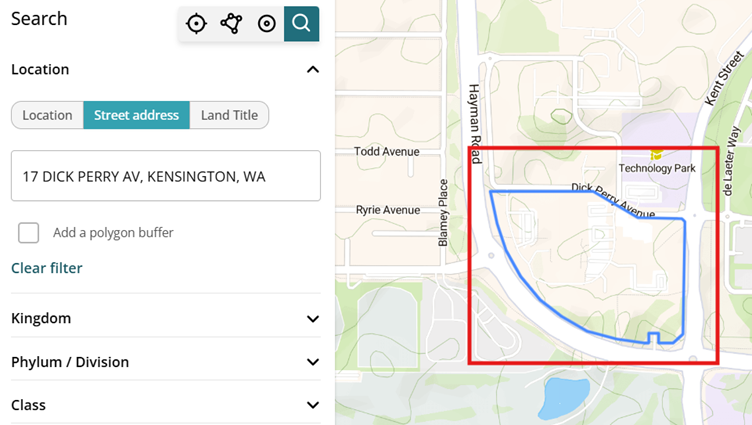
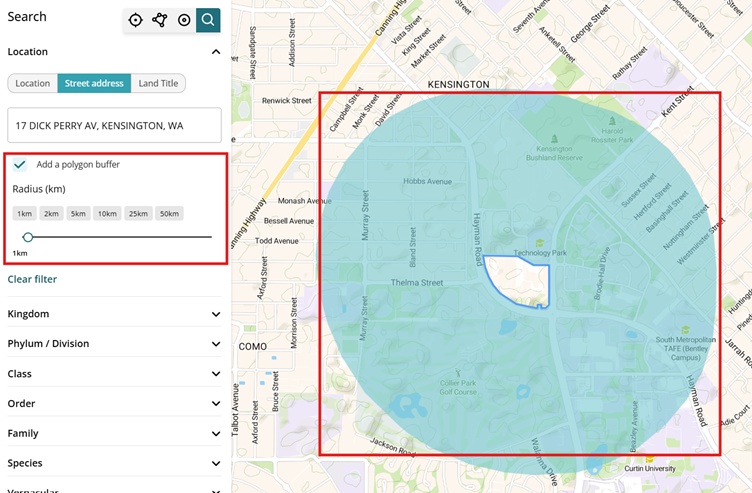
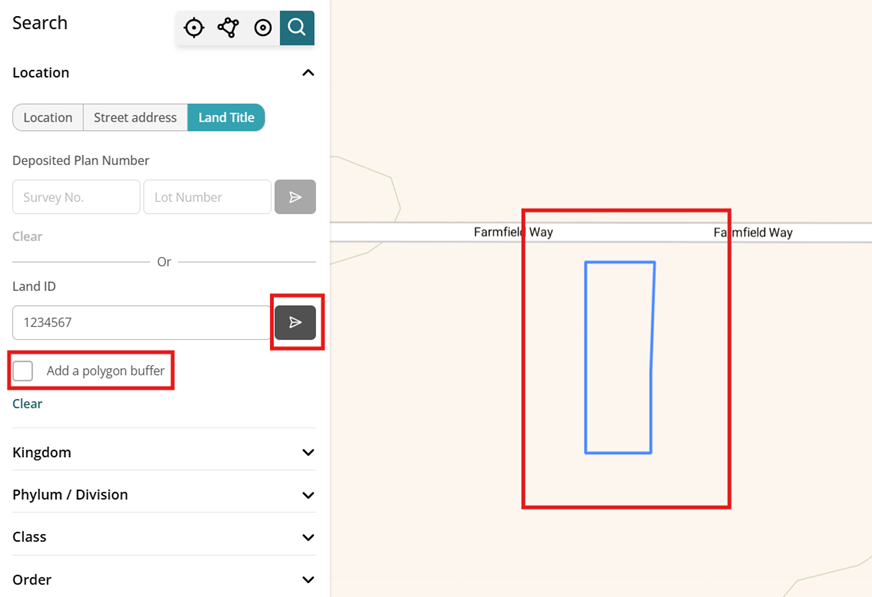
Once an address is selected, the address lot area will be drawn on the map, and you can navigate the map to view the lot area. Buffers can then be further added to the lot area along with any taxonomic or dataset search criteria.
Land Title search
Deposited Plan number or Land ID can be used to set the search area
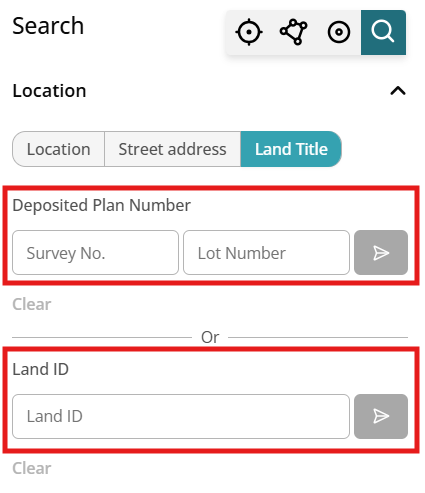
For Deposited Plan Number, both ‘Survey number’ and ‘Lot number’ is needed to complete the search.
Ensure that the ‘Set’ button ( ) is clicked to lock the area prior to pressing ‘Apply’
If either Deposited Plan number or Land ID is not found, a notification will appear after the ‘Set’ button is pressed.
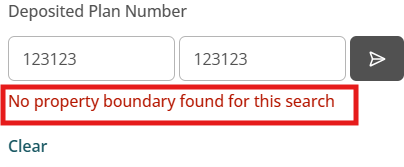
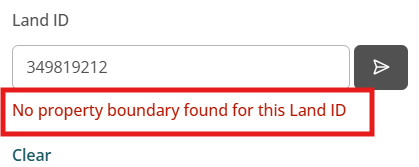
Once a valid Deposited Plan number or Land ID has been ‘Set’, the lot area will be drawn on the map, and you can navigate the map to view the lot area. An ‘Add polygon buffer’ will also appear allow a buffer to be added to the lot area
What we are working on
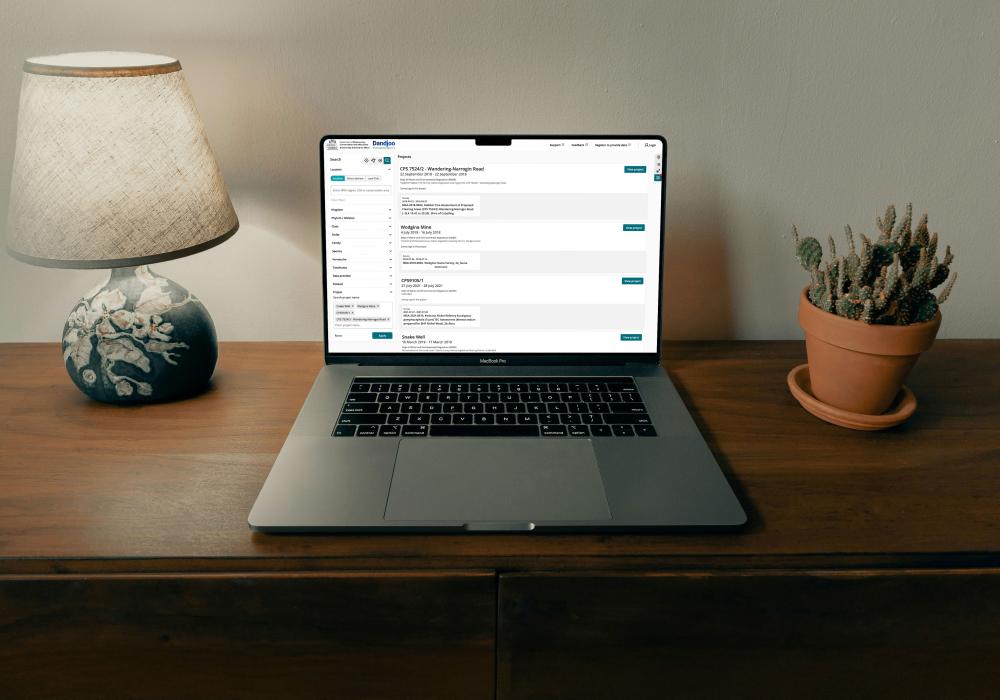
We have added functionality to be able to search, view and download (where available) Systematic Survey Data in the Dandjoo platform.
Join the BIO newsletter and get updated first
Sign up for access to the latest developments at the Biodiversity Information Office, upcoming Dandjoo features, and our newest datasets.